How to Do Bank Reconciliation in Xero: A Step-by-Step Guide
Bank reconciliation is the daily habit that separates clean books from chaos. Here is exactly how it works in Xero - from first bank feed to month-end sign-off.
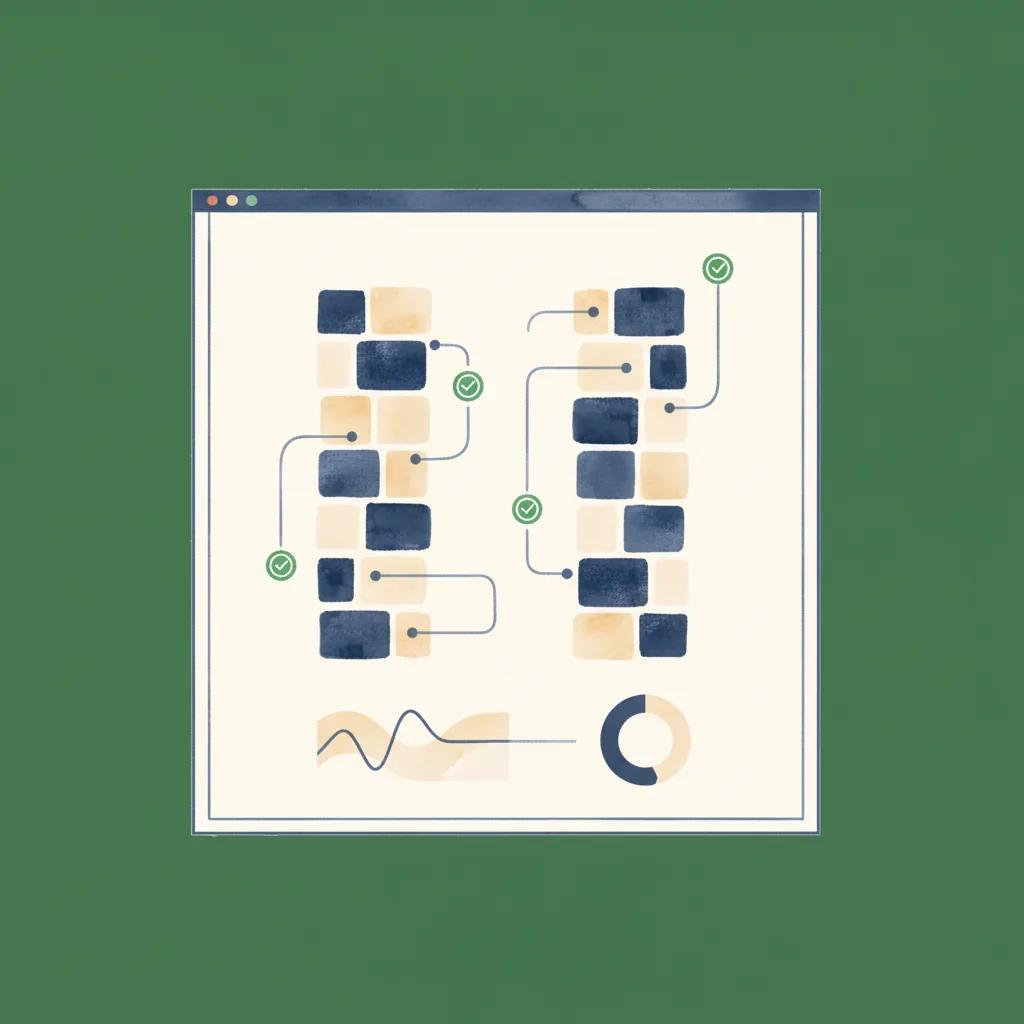
Bank reconciliation in Xero is the process of matching imported bank statement lines to transactions in your Xero ledger. Xero uses automatic bank feeds, suggested matches, and bank rules to streamline this workflow. This guide covers every step from connecting your bank to resolving month-end discrepancies.
Why reconciliation matters
Bank reconciliation is the process of matching every transaction on your bank statement against a corresponding entry in your accounting records. When they match, you know the books are correct. When they don't, you've found something that needs investigating - a missed invoice, a duplicate payment, a bank charge you forgot to record, or occasionally something worse.
In Xero, reconciliation is designed to be a daily task. Not because Xero is being demanding, but because thirty transactions are manageable over morning coffee. Three hundred, after a month of avoidance, are not. The businesses that reconcile daily catch errors within 24 hours. The ones that leave it until the VAT return is due spend half a day chasing discrepancies that would have taken thirty seconds to resolve at the time.
This guide covers the complete reconciliation workflow in Xero: the mechanics of matching, the setup that makes it efficient, and the problems that trip people up when something goes wrong.
Before you start: prerequisites
Reconciliation in Xero only works cleanly if three things are in place first. Skip any of these and you will spend more time fixing problems than actually reconciling.
1. A connected bank feed
Go to Accounting > Bank accounts > Add Bank Account. Xero supports direct feeds from most major banks in the UK, US, Australia, and New Zealand. For banks without a direct feed, you can use Yodlee (Xero's aggregation partner) or manually import statements as CSV, OFX, or QIF files. A live bank feed means transactions appear in Xero automatically, usually within 24 hours of clearing your bank. Without one, you are importing files manually and the whole workflow becomes slower.
2. A clean chart of accounts
Every transaction you reconcile needs to be coded to an account. If your chart of accounts is a mess - dozens of unused accounts, no clear distinction between expense categories, no consistency in naming - reconciliation becomes an exercise in guesswork. Before you start reconciling in earnest, go to Accounting > Chart of Accounts and tidy up. Archive anything you don't use. Make sure the names make sense to the person who will be doing the daily reconciliation, not just the accountant who set it up.
3. A correct opening balance
When you first add a bank account in Xero, it asks for a statement balance and date. This is your anchor point. If you enter the wrong opening balance, every reconciliation from that point forward will show a discrepancy - not because anything is wrong with the current transactions, but because the starting position is off. Check the figure against an actual bank statement. If you've already started and the opening balance is wrong, go to Accounting > Bank accounts, click the bank account, then Manage Account > Edit Account Details to correct it.
Bank feed lag
Bank feeds are not real-time. Most UK banks deliver transactions to Xero with a one or two business day delay. Weekends and bank holidays extend this. Don't panic if today's transactions haven't appeared yet - they'll come through. If a feed hasn't updated in more than three business days, check the connection status under Accounting > Bank accounts and look for a yellow warning icon.
Step-by-step: daily reconciliation in Xero
This is the core workflow. Once your bank feed is connected and transactions are flowing in, here is exactly what happens on the reconciliation screen and what each option does.
Navigate to the reconciliation screen
Go to Accounting > Bank accounts. You'll see each connected bank account with a number in a blue badge - that's the count of transactions waiting to be reconciled. Click Reconcile on the account you want to work on. Alternatively, click the bank account name, then the Reconcile tab at the top.
Understand the layout
The reconciliation screen shows bank statement lines on the left and Xero's matching options on the right. Each bank line shows the date, description (as your bank reports it), and the amount. On the right, Xero presents its best guess: either a suggested match to an existing transaction, or a form to create a new one. You work through them one by one, top to bottom.
Accept suggested matches
When Xero finds an existing transaction that matches a bank statement line - same amount, similar date, plausible description - it shows a green "OK" button. This is the fastest path. If the match is correct, click OK and move on.
These suggested matches typically appear when you've already entered a bill, invoice, or other transaction in Xero. The bank feed line confirms the money actually moved, and clicking OK reconciles the two records together. If you've raised a sales invoice for £500 and the bank feed shows £500 received from that customer, Xero will suggest the match. One click, done.
Create new transactions for unmatched items
For bank lines that don't match anything already in Xero, you need to create a new transaction. This is what happens with most day-to-day expenses - subscriptions, bank charges, card payments, ad hoc purchases - where there's no pre-existing bill in the system.
On the right side of the screen, Xero shows a form with:
- Who: The contact (payee or payer). Start typing and Xero will suggest existing contacts.
- What: The account code to categorise the transaction (e.g., "Office Expenses," "Travel," "Advertising").
- Tax rate: The VAT treatment. Xero pre-selects a default based on the account code, but you can override it.
- Description: Optional. You can add a note or leave the bank's description as-is.
Fill in the fields and click OK. Xero creates the transaction and reconciles it in one step.
Use Find & Match for items already in Xero
Sometimes a transaction exists in Xero but Xero hasn't automatically suggested it. This happens when the amounts differ slightly (rounding, bank charges deducted at source), or when the date gap between the invoice and the payment is large enough that Xero's matching algorithm doesn't pick it up.
Click the Find & Match tab on the right side. Xero shows a list of outstanding transactions - unpaid invoices, bills, credit notes - that could potentially match. You can search by amount, date, or contact. Select the correct item (or multiple items if the bank line covers several), and click Reconcile.
If the amounts don't match exactly - say the bank line is £97.50 but the invoice was for £100, because the bank deducted a fee - you can add an adjustment line to account for the difference before reconciling.
Transfer between accounts
If a bank line represents money moving between two of your own bank accounts (e.g., current account to savings, or a credit card payment from the main account), click the Transfer tab. Select the other bank account, and Xero will record the movement without creating a spurious income or expense entry. This keeps the balance sheet correct.
Discuss or skip for later
If you don't know what a transaction is - an unfamiliar merchant, an amount you can't place - don't guess. Click the Discuss tab (previously called "Comment"), add a note and assign it to a colleague for review. This prevents it from blocking the rest of your reconciliation. You can also simply leave it unreconciled and come back to it once you've investigated.
Keyboard shortcuts speed things up
On the reconciliation screen, Ctrl+Enter (or Cmd+Enter on Mac) confirms the current match without reaching for the mouse. When you're working through a long list, the seconds saved per transaction add up. Xero also remembers your previous coding for the same contact - if you coded "Amazon Web Services" to "IT Software" last time, it'll pre-fill the same account next time that payee appears.
Setting up bank rules for recurring transactions
Bank rules are Xero's way of automating the categorisation of transactions that follow a predictable pattern. Instead of manually coding the same subscription payment every month, you create a rule once and Xero handles it from then on.
When bank rules make sense
Rules work best for transactions that are genuinely repetitive and predictable:
- Monthly software subscriptions (Xero itself, Slack, Microsoft 365)
- Payroll payments (if the description is consistent)
- Direct debits for insurance, rent, utilities
- Bank charges and monthly fees
- Regular supplier payments where the description is stable
How to create a bank rule
Start from the reconciliation screen
The easiest way is to create rules from real transactions. On the reconciliation screen, after filling in the account code and contact for a transaction, click Create Rule (the small link below the form). Xero pre-populates the rule conditions based on the current bank line. Alternatively, go to Accounting > Bank accounts > Bank Rules to create rules manually.
Set the conditions
Rules match on bank line fields: payee/description text, amount (exact, or a range), and the bank account the feed comes from. You can combine conditions with AND/OR logic.
For example: "If bank line description contains 'SPOTIFY' and amount is between 5.00 and 20.00, then code to 'Subscriptions' with tax rate '20% (VAT on Expenses)' and contact 'Spotify.'"
Choose auto-apply or suggest
Two modes are available:
- Auto-apply: Xero reconciles the transaction automatically. You never see it on the reconciliation screen. Fast, but risky if the rule is too broad.
- Suggest: Xero pre-fills the form on the reconciliation screen. You still click OK to confirm. This is the safer option, especially when you're first setting up rules.
Start with "suggest" mode until you're confident the rule catches the right transactions and nothing else. Promote to "auto-apply" once you've seen it work correctly for a few cycles.
The limitations of bank rules
Bank rules are pattern-matching on text strings. They don't learn, they don't adapt, and they break when banks change their transaction descriptions - which banks do routinely and without warning.
A rule matching "TESCO STORES" will stop working when your bank starts sending "TESCO PFS" or "TESCO.COM" instead. A rule for a fixed subscription amount will miss the transaction if the price changes. And rules can silently miscategorise transactions if the conditions are too broad - a rule matching "AMAZON" will catch both your office supplies and your personal Prime subscription if both go through the same account.
Review your bank rules quarterly. Delete any that are no longer firing. Check the coding on auto-applied rules by running a transaction report filtered by the target account - if anything looks out of place, the rule needs tightening or removing.
Handling specific scenarios
Not every bank line is a straightforward one-transaction-one-account affair. Here's how to handle the situations that require a bit more thought.
Split transactions
Sometimes a single bank line covers expenses that belong to different accounts. A typical example: a hardware store purchase where part is office supplies and part is a tool for the workshop.
On the reconciliation screen, click Add a new line below the account code field. This splits the transaction across multiple account codes. Enter the amount for each line, making sure the total matches the bank statement amount. Each line can have its own tax rate. Xero won't let you reconcile until the split amounts equal the bank line amount exactly.
Transfers between bank accounts
When money moves between two accounts you control - current account to savings, or paying off a credit card from the main account - this is not income or expenditure. It's a transfer.
On the reconciliation screen, click the Transfer tab and select the other bank account. You'll need to reconcile the transaction on both bank accounts: the sending side and the receiving side. Once both sides are reconciled, the transfer is complete and the balance sheet is correct.
Why transfers matter
If you accidentally code a transfer as an expense (on the outgoing side) and income (on the incoming side), you've inflated both your revenue and your costs. The profit is accidentally correct, but the individual figures are wrong - which matters for VAT returns, management accounts, and anyone looking at the numbers in detail.
Foreign currency transactions
If you have a multi-currency bank account or your bank feed includes foreign currency transactions, Xero handles the conversion automatically using its built-in exchange rates. However, the rate Xero uses may differ slightly from the rate your bank applied, which creates small exchange rate differences.
These differences are normal. Xero posts them to an "Unrealised Currency Gains" or "Realised Currency Gains" account automatically. Don't try to force-match foreign currency amounts by adjusting the invoice - let Xero handle the FX difference.
For businesses with significant foreign currency activity, check that your base currency is set correctly under Settings > General Settings > Financial Settings. This cannot be changed after transactions have been recorded.
Credit card reconciliation
Credit cards in Xero are treated as bank accounts with a negative balance (a liability). Add the credit card as a bank account, connect its feed, and reconcile exactly as you would a current account. The main differences:
- Purchases show as "spent" (increasing the liability balance)
- Monthly payments from your current account are transfers (not expenses)
- Interest charges and annual fees are coded to their respective expense accounts
The most common mistake with credit cards is coding the monthly payment as an expense. It isn't. The expenses were already recorded when each individual card transaction was reconciled. The monthly payment is just a transfer of money from the current account to pay down the credit card liability.
Direct debits and standing orders
These are ideal candidates for bank rules. The description is usually consistent, the amount is predictable (or falls within a narrow range for variable direct debits like energy bills), and they recur monthly. Set up a bank rule in "suggest" mode for each regular direct debit, and reconciliation becomes a series of confirmations rather than manual data entry.
Cash coding for bulk categorisation
If you have a backlog of unreconciled transactions - or you're setting up Xero for the first time with imported historical data - the Cash Coding tab (found on the bank account screen alongside the Reconcile tab) lets you categorise multiple transactions at once.
Cash coding presents transactions in a spreadsheet-like grid. Select multiple lines, assign the same account code and tax rate in one action. It's significantly faster than reconciling one at a time when you have dozens of similar transactions (e.g., thirty days of card terminal deposits all going to "Sales").
Cash coding vs. reconciliation
Cash coding creates new transactions and reconciles them in one step. It does not match against existing transactions in Xero. If you've already entered invoices or bills that these bank lines should match against, use the normal reconciliation screen with Find & Match instead. Cash coding is for when nothing exists yet.
Month-end reconciliation checklist
Daily reconciliation keeps things tidy. Month-end is where you confirm everything is actually correct. Here's a practical checklist to run at the end of each month.
Clear all unreconciled transactions
Before anything else, reconcile everything that's waiting. That number in the blue badge on the bank account should be zero. If there are items you genuinely can't identify, investigate them now rather than letting them carry over.
Check statement balance matches Xero balance
Log into your bank and note the closing balance as at the last day of the month. In Xero, go to Accounting > Bank accounts and check the balance shown. These should match. If they don't, you have either unreconciled items, missing bank feed data, or a transaction entered manually that shouldn't be there. The difference is your starting point for investigation.
Run the bank reconciliation report
Go to Accounting > Reports > Bank Reconciliation Summary. This report shows the bank statement balance, outstanding items (received in the feed but not yet reconciled), and Xero's calculated balance. Any discrepancy will be visible here. You can also run the Bank Statement report filtered to the month to see every reconciled transaction in chronological order.
Review auto-applied bank rules
If you use auto-apply rules, this is your safety net. Run a transaction report for each account code that receives auto-applied transactions and scan for anything that looks wrong. A rule that miscategorises one transaction a month creates twelve errors before your accountant sees the year-end accounts.
Check the suspense / waiting account
If anyone in your team has been coding items to a suspense account, clearing account, or "Ask my accountant" (which is an actual default account in Xero), these need resolving. Filter the trial balance or general ledger for these accounts and recode anything that's sitting there.
Confirm no duplicate transactions
Duplicates happen when bank feeds overlap with manual imports, or when a bank feed resends historical transactions after a reconnection. Sort transactions by amount and date and look for obvious pairs. Xero has a built-in duplicate detection warning, but it's not perfect - it misses duplicates where the description or date differs slightly.
Common problems and how to fix them
Every bookkeeper who has used Xero for more than a month has encountered at least one of these. Here's what causes them and how to resolve each one.
Opening balance doesn't match
If your Xero bank balance has been wrong from the start, every subsequent reconciliation will show a persistent discrepancy. This usually happens when the opening balance was entered using a different date than the bank statement it was taken from, or when it was entered as a rounded figure instead of the exact statement balance.
Fix: Go to Accounting > Bank accounts, click the bank account, then Manage Account > Edit Account Details. Correct the opening balance and statement date. If there are already reconciled transactions, you may need to un-reconcile and re-reconcile them. For complex cases, it's sometimes easier to enter a manual journal to correct the cumulative difference.
Duplicate transactions from bank feed
This typically happens in three scenarios: you manually imported a statement for a period that the bank feed also covered; the bank feed reconnected after a break and resent historical data; or Xero's feed provider glitched and delivered the same batch twice.
Fix: Go to the bank account, click the Bank Statements tab, and review the imported statement lines. If you can identify the duplicate batch, you can delete the duplicate statement lines (not the reconciled transactions). For already-reconciled duplicates, you'll need to un-reconcile and then delete the extra transaction. To prevent this in future, never manually import statements for periods where the bank feed is active.
Missing transactions
The bank statement shows a transaction but it hasn't appeared in Xero. Causes include: the bank feed has a lag (wait 1-2 business days); the feed connection is broken (check for warnings); or the transaction was imported but accidentally deleted.
Fix: First, wait. Most "missing" transactions are simply delayed in the feed. If it's been more than three business days, go to Accounting > Bank accounts, click the account, and check the feed status. If the feed is broken, disconnect and reconnect it. If the feed is working but transactions are still missing, manually import a bank statement (CSV or OFX) for the affected period to fill the gap.
Reconciliation balance doesn't match bank
You've reconciled everything, but the balance in Xero still doesn't agree with the bank. This is almost always caused by one of: a manual journal affecting the bank account; a manually entered transaction that doesn't correspond to a real bank movement; or a deleted bank feed line that was already reconciled.
Fix: Run the Bank Reconciliation Summary report and compare it line by line against the bank statement. The discrepancy amount often points directly to the rogue transaction. Check for manual journals posted to the bank account (common with opening balance adjustments or year-end entries). Also check for transactions entered via Business > Bills or Invoices that were marked as paid against this bank account but don't correspond to a real bank movement.
Bank feed disconnected
Bank feeds break. Banks update their security, change their APIs, or require re-authentication. When this happens, new transactions stop flowing into Xero.
Fix: Go to Accounting > Bank accounts. A disconnected feed usually shows a warning icon or banner. Click it and follow the re-authentication flow. You'll typically need to log into your bank through Xero's connection window and re-authorise access. After reconnecting, check for any gap in coverage - the feed usually catches up automatically, but if there's a gap, import a manual statement to cover the missing period.
The nuclear option: statement line removal
If you've imported or received duplicate statement lines and things have become thoroughly tangled, you can delete individual bank statement lines from the Bank Statements tab on the bank account page. This removes the line from the reconciliation queue without affecting any already-reconciled transactions. Use this carefully - deleting a legitimate statement line means that transaction will never be reconciled, and your Xero balance will drift from the bank balance by that amount.
When Xero reconciliation hits its limits
Xero's reconciliation workflow is well-designed for the use case it targets: a single bookkeeper working through a manageable daily queue of transactions, one bank account at a time. For most small businesses, it works exactly as intended.
But there are situations where the one-at-a-time approach starts to creak:
High-volume businesses
If you're processing 50+ transactions a day - a busy retail operation, a hospitality business, an e-commerce seller - clicking through each one individually becomes a significant time commitment. Cash coding helps, but it doesn't match against existing invoices or bills. You're left choosing between speed (cash coding everything) and accuracy (matching everything properly).
Multiple bank accounts
A business with a current account, savings account, credit card, PayPal, and Stripe has five separate reconciliation queues. Each must be reconciled independently. Transfers between them need to be recorded on both sides. For practices managing multiple clients, each with multiple accounts, the total volume adds up fast.
Historical backlog catch-up
Migrating to Xero or catching up after months of neglected bookkeeping means reconciling hundreds or thousands of historical transactions. Xero's reconciliation screen processes these one at a time. There's no bulk matching mode beyond cash coding, and cash coding doesn't handle the pattern recognition needed to categorise a backlog accurately.
Bank statements in PDF format
Xero doesn't accept PDF bank statements. If your client's bank doesn't offer CSV or OFX downloads - or if you're working from older statements only available as PDFs - you need to convert those PDFs to CSV before Xero can ingest them. This adds an entire step to the workflow that Xero doesn't handle natively.
None of these are flaws in Xero. They're boundary conditions - the point where a general-purpose accounting tool's reconciliation feature meets the demands of a specialist reconciliation workload. Xero is an excellent accounting platform. It just wasn't built to be a dedicated reconciliation engine.
The practical reality
For the vast majority of businesses, Xero's built-in reconciliation is more than adequate. If you're reconciling daily and your transaction volume is moderate, you probably don't need anything else. The problems emerge at scale: when you're a practice managing twenty clients' reconciliations, or a business with transaction volumes that make one-at-a-time processing impractical, or when you're dealing with PDF statements that need converting before Xero can even start.
Reconciling at scale?
ReconcileIQ handles bulk bank reconciliation, PDF-to-CSV conversion for 17+ bank formats, and intelligent matching across thousands of transactions. Works alongside Xero, not instead of it.
See how ReconcileIQ worksFrequently Asked Questions
How do I reconcile bank transactions in Xero?
Go to Accounting > Bank Accounts, select your account, and click Reconcile. Xero shows bank statement lines alongside suggested matches from your ledger. Confirm correct matches, create new transactions for unmatched items, and use bank rules for recurring transactions.
What are Xero bank rules and how do I set them up?
Bank rules automatically categorise transactions matching specific criteria (description keywords, amount ranges, or contact names). Create them via Accounting > Bank Accounts > Bank Rules. They save significant time on recurring transactions like rent, subscriptions, and utility bills.
Why does my Xero bank reconciliation not balance?
Common causes include transactions coded to the wrong date, duplicate entries, missing bank feed transactions, or items sitting in the suspense account. Check the bank account balance in Xero against the actual bank statement balance to find the exact discrepancy amount.
What is cash coding in Xero?
Cash coding is a batch categorisation feature in Xero that lets you code multiple bank transactions at once without reconciling them individually. It is useful for high-volume accounts where many transactions share the same account code.